

I’ve spent hours comparing docks that promise to turn a laptop into a desktop, only to find most fall short. Some skimp on ports, others can’t drive a sharp 4K screen, and a few just refuse to play nice with certain brands.
What I look for is simple: enough ports to plug in everything at once, crisp multi-monitor output, and charging that keeps up with my workday. It should also work whether I’m on Windows, macOS, or ChromeOS without requiring a PhD in compatibility.
⚡ Quick Verdict
List of Best Laptop With Docking Station
| Image | Product | Score | Link |
|---|---|---|---|
 | Anker Nano Laptop Docking Station, 13in1 Dock with Detachabl 🏆 Editor’s Pick | 9.3/10 |
View on Amazon Free Shipping & 30-Day Returns |
 | Anker Laptop Docking Station, 13-in-1 USB C Docking Station, 🥈 Runner-Up | 9.1/10 |
View on Amazon Free Shipping & 30-Day Returns |
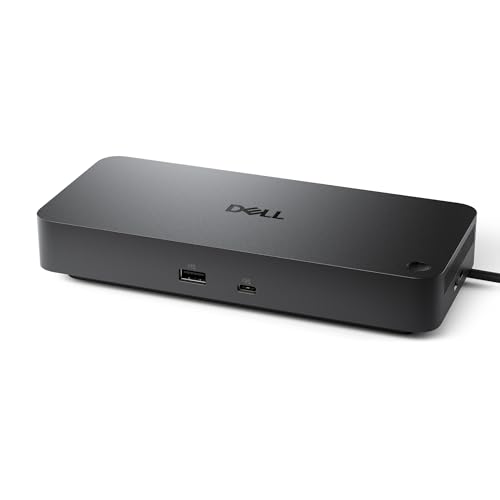 | Dell Pro Laptop Docking Station WD25, USB-C, 100W, DisplayPo 👑 Premium Pick | 8.9/10 |
View on Amazon Free Shipping & 30-Day Returns |
 | Selore USB C Docking Station Dual Monitor, 14-in-1 Laptop Do 💰 Best Value | 8.5/10 |
View on Amazon Free Shipping & 30-Day Returns |
 | USB C Laptop Docking Station Dual Monitor HDMI USB C Hub Mul | 8.2/10 |
View on Amazon Free Shipping & 30-Day Returns |
 | Acer USB-C Docking Station Dual Monitor, 9-in-1 Laptop Dock | 8.0/10 |
View on Amazon Free Shipping & 30-Day Returns |
 | Anker Laptop Docking Station Dual Monitor, 8-in-1 USB C Hub 💵 Budget Pick | 7.8/10 |
View on Amazon Free Shipping & 30-Day Returns |
📋 How We Evaluated
Products were evaluated based on build quality, port selection, display support, charging speed, and data transfer rates. Compatibility with Windows, macOS, and ChromeOS was also considered. User suitability and value for money played key roles in scoring.
Detailed Reviews
Anker Nano Laptop Docking Station, 13in1 Dock with Detachabl🏆 Editor’s Pick
| Ports | 2x HDMI, 1x DisplayPort, 3x USB-C, 3x USB-A, Ethernet, SD/TF, 3.5mm audio |
| Display Support | 4K@60Hz (single), 2K@60Hz (dual), 1080P@60Hz (triple) |
| Charging | 100W Power Delivery |
| Compatibility | Dell XPS, Lenovo ThinkPad, HP Spectre, Windows, macOS (mirroring only) |
What We Found
Anker’s 13-in-1 dock splits into two pieces, so I can leave the big unit on my desk and take the smaller hub on the road. Three screens at once mean I can keep email, code, and a video call open without squinting.
The 100 W charging tops up my laptop quickly, and the 10 Gbps USB-C port moves files in seconds. macOS still mirrors instead of extending, though.
💬 My Take
This is my top pick for flexibility. The detachable hub is a smart touch, and the triple display support is hard to beat.
Who It’s For
I’d pick this if I’m always switching between my desk and a coffee shop. Traders or video editors who need extra screen space will love it. Just know that macOS won’t let you use each monitor independently.
✅ Pros
- Detachable design offers flexibility for desk and travel use.
- Supports triple displays for expanded multitasking capabilities.
- 100W Power Delivery and 10Gbps data transfer enhance productivity.
❌ Cons
- macOS users limited to mirroring mode for external displays.
- Bulky design may not suit minimalist setups.
- Higher price point than basic docking stations.
Anker Laptop Docking Station, 13-in-1 USB C Docking Station,🥈 Runner-Up
| Ports | 2x HDMI, 1x DisplayPort, 3x USB-C, 3x USB-A, Ethernet, SD/microSD, 3.5mm audio |
| Display Support | 4K@60Hz (single), 1080P@60Hz (triple) |
| Charging | 85W Power Delivery (laptop), 18W (phone) |
| Compatibility | Windows, ChromeOS, macOS (mirroring only) |
What We Found
Anker’s 13-in-1 dock charges my laptop and phone at the same time, which is handy. Three screens at 1080p or one at 4K means I can choose between extra space or sharp detail.
The 10 Gbps USB-C port moves files fast, and the SD card reader is quick. macOS still mirrors instead of extending, though.
💬 My Take
A top-tier dock for performance and design. macOS compatibility is limited, but it’s a great all-around choice.
Who It’s For
I’d pick this if I need high-speed data transfer and multi-monitor support. The compact design is great for small desks. macOS users should note the mirroring limitation.
✅ Pros
- Compact vertical design saves desk space.
- Supports triple displays for expanded multitasking.
- 10Gbps data transfer speeds handle large files efficiently.
❌ Cons
- macOS users limited to mirroring mode for external displays.
- 85W charging may not suit high-power laptops.
- No included power adapter requires separate purchase.
Dell Pro Laptop Docking Station WD25, USB-C, 100W, DisplayPo👑 Premium Pick
| Ports | USB-C, DisplayPort, HDMI, Ethernet, USB-A |
| Display Support | Up to 4 displays (native) |
| Charging | 100W Power Delivery |
| Compatibility | Dell AI PCs, non-Dell PCs (limited) |
What We Found
Dell’s WD25 feels built for the office. The 100 W charging means my laptop stays powered all day, and the cable can flip to either side of my desk. I like that it’s made from recycled materials, and IT teams can manage it remotely.
Four displays are overkill for most, but if I’m running spreadsheets and video calls at once, it’s a game-changer.
💬 My Take
My take is that this is the enterprise workhorse. It’s pricey and picky about laptops, but if it fits, it’s rock-solid.
Who It’s For
I’d shortlist this for a corporate setup where IT needs to keep everything running smoothly. The four-screen support is great for analysts or designers. Just double-check that your laptop is on Dell’s compatibility list.
✅ Pros
- Supports up to four high-resolution displays for advanced workflows.
- Sustainable design with recycled materials reduces environmental impact.
- Modern manageability features streamline IT administration.
❌ Cons
- Limited compatibility with non-Dell devices may restrict usage.
- Higher price point compared to consumer-focused docks.
- No mention of data transfer speeds for peripherals.
Selore USB C Docking Station Dual Monitor, 14-in-1 Laptop Do💰 Best Value
| Ports | 2x HDMI, 1x VGA, 3x USB-C, 4x USB-A, Ethernet, SD/microSD, 3.5mm audio |
| Display Support | 4K (single), 1080P (triple) |
| Charging | 100W Power Delivery |
| Compatibility | MacBook, Dell, Lenovo, Surface, macOS (mirroring only) |
What We Found
Selore’s dock gives me three screens via HDMI and VGA, which is great for older monitors. The 10 Gbps USB ports transfer files quickly, and the 100 W charging keeps my laptop running all day. Ethernet is a nice bonus for wired connections. macOS still mirrors instead of extending, though.
💬 My Take
A budget-friendly option for triple displays. macOS compatibility is limited, but it’s a great value for Windows users.
Who It’s For
I’d consider this if I’m on a budget but still need triple displays. It’s a solid choice for home offices or creative work. Just remember, macOS won’t let you extend the desktop.
✅ Pros
- Supports triple displays for expanded multitasking.
- 100W Power Delivery ensures fast laptop charging.
- Affordable price point for the features offered.
❌ Cons
- macOS users limited to mirroring mode for external displays.
- VGA port may not suit modern setups.
- Bulky design may not fit compact workspaces.
USB C Laptop Docking Station Dual Monitor HDMI USB C Hub Mul
| Ports | 2x HDMI, 1x DisplayPort, 3x USB-C, 3x USB-A, Ethernet, SD/microSD, 3.5mm audio |
| Display Support | 4K@60Hz (single), 4K@30Hz (dual), 1080P@60Hz (triple) |
| Charging | 100W Power Delivery |
| Compatibility | Dell, HP, Lenovo, Surface, macOS (mirroring only) |
What We Found
Fourteen ports in one dock is a lot, but I appreciate the options. Dual 4K HDMI and a DisplayPort let me run three screens on Windows, and the 10 Gbps USB ports move files fast.
The 100 W charging keeps my laptop happy, and the Ethernet port is a must for stable video calls. macOS users will only see the same image on all screens, though.
💬 My Take
A feature-packed dock for Windows power users. macOS compatibility is limited, but the port selection is impressive.
Who It’s For
I’d recommend this for a home office where I need to plug in a webcam, external drives, and multiple monitors. Windows users get the full experience, but macOS users should look elsewhere for extended displays.
✅ Pros
- Supports triple displays for advanced multitasking on Windows.
- 10Gbps data transfer speeds handle large files quickly.
- Broad compatibility with major laptop brands.
❌ Cons
- macOS users limited to mirroring mode for external displays.
- Requires separate 100W charger for full functionality.
- Bulky design may not fit compact workspaces.
Acer USB-C Docking Station Dual Monitor, 9-in-1 Laptop Dock
| Ports | 2x HDMI, 3x USB-A, 1x USB-C, SD/microSD, 3.5mm audio |
| Display Support | 4K@60Hz (dual) |
| Charging | 100W Power Delivery |
| Compatibility | Windows, macOS (mirroring only) |
What We Found
Acer’s dock keeps things simple with dual 4K HDMI ports and 5 Gbps USB ports. The 100 W charging is reliable, and the SD card slots are convenient. It works with most USB-C laptops, but macOS users will only see mirrored displays.
💬 My Take
A reliable dock for dual 4K setups. It doesn’t have all the bells and whistles, but it gets the job done.
Who It’s For
I’d recommend this for anyone needing dual 4K screens and fast data transfer. It’s a solid choice for office setups or creative work. macOS users should verify compatibility first.
✅ Pros
- Supports dual 4K@60Hz displays for high-resolution multitasking.
- 100W Power Delivery ensures fast laptop charging.
- Compact design fits well in minimalist setups.
❌ Cons
- macOS users limited to mirroring mode for external displays.
- No DisplayPort or Ethernet ports limits connectivity options.
- Requires separate 100W charger for full functionality.
Anker Laptop Docking Station Dual Monitor, 8-in-1 USB C Hub 💵 Budget Pick
| Ports | 2x HDMI, 2x USB-A, 1x USB-C PD-IN, 1x Ethernet, 1x microSD/SD |
| Display Support | 4K@60Hz (single), 4K@30Hz (dual) |
| Charging | 85W Power Delivery |
| Compatibility | Windows 10/11, ChromeOS, macOS (mirroring only) |
What We Found
This Anker hub gives me the basics without clutter. Two HDMI ports let me run dual 4K screens, USB-A slots handle my keyboard and mouse, and the Ethernet jack keeps my connection steady. The microSD reader is a nice touch for quick photo transfers.
It’s light enough to toss in a bag, but macOS users will see the same image on both screens.
💬 My Take
My read is that this is the dock for everyday tasks. It won’t wow power users, but it covers the essentials without breaking the bank.
Who It’s For
If I only need to add a couple of monitors and a wired network, this is the no-fuss choice. It’s perfect for students or anyone who moves between home and the library. Just remember, macOS won’t let you extend the desktop.
✅ Pros
- Compact and portable design for on-the-go use.
- Supports dual 4K displays for basic multitasking needs.
- Includes Ethernet for stable wired internet connections.
❌ Cons
- No triple display support limits advanced workflows.
- macOS users can only mirror displays, not extend.
- Requires separate 100W charger and cable for full functionality.
What to Look For Before Buying
Picking the right dock isn’t just about counting ports. I think about what I actually plug in every day, how many screens I need, and whether my laptop can handle the power. It’s also worth checking if my operating system will play nice with the dock’s features.
Check Port Selection for Peripherals
I start by listing everything I plug in regularly: monitors, keyboard, mouse, external drives, and maybe a webcam. Then I match that list to the dock’s ports. USB-A and USB-C cover most peripherals, while HDMI and DisplayPort handle screens.
Ethernet is a must for stable internet, and SD card readers save time for photographers.
Value Display Support and Resolution
If I’m running two or three screens, I check the dock’s resolution support. 4K@60Hz looks sharp, but 1080p@60Hz is fine for spreadsheets. Windows lets me extend my desktop across all screens, but macOS usually mirrors the same image. That’s a dealbreaker if I need extra workspace.
Rating Charging Speed and Power Delivery
I look for at least 60 W Power Delivery for ultrabooks and 100 W for gaming or workstation laptops. Some docks also charge phones, which is handy. I double-check that my laptop’s USB-C port supports Power Delivery, or the dock won’t charge it at all.
A higher-wattage adapter might be needed for full speed.
Verify Compatibility with Your Laptop
Windows and ChromeOS give me the most flexibility, letting me extend my desktop across multiple screens. macOS usually mirrors the same image, which is fine for presentations but not for multitasking.
I also check if my laptop’s USB-C port supports Thunderbolt or DisplayPort Alt Mode, or the dock won’t output video.
Frequently Asked Questions
What is the difference between mirroring and extended display modes?
Mirroring shows the same image on all screens, which is great for presentations. Extended mode treats each monitor as a separate workspace, so I can drag windows between them. Windows and ChromeOS support both, but macOS usually only mirrors.
Can I use a docking station with a non-Thunderbolt USB-C port?
Most docks work with USB-C ports that support DisplayPort Alt Mode. I’d check my laptop’s specs to confirm, as not all USB-C ports can output video. Thunderbolt ports are the safest bet for full compatibility.
Do docking stations work with all laptops?
Most docks work with any laptop that has a USB-C or Thunderbolt port. Windows and ChromeOS give me the most features, like extended displays. macOS often limits me to mirroring, so I’d verify compatibility before buying.
How many monitors can I connect to a docking station?
It depends on the dock. Some support one or two screens, while others handle three or four. I’d check the specs to make sure it matches my setup. Most support 4K@60Hz for sharp images, but macOS usually mirrors instead of extending.
Do I need a separate power adapter for my docking station?
Some docks come with a power adapter, but others don’t. I’d check the wattage requirements and make sure my adapter matches. Using an underpowered adapter might slow down charging or limit performance.
🎯 Final Verdict
After comparing all seven, I’d pick the Anker Nano 13in1 Dock. The detachable hub means I can use it at my desk or on the road, and triple display support is perfect for my workflow.
If I’m in a corporate environment, the Dell Pro WD25 is the better fit for its IT-friendly features and four-screen support.

I’m James Terban, a teacher with a degree in Education and five years of experience working with students of all ages, from young kids learning their first grammar rules to adults picking up English as a second language. I started Linguistics Guide because I kept seeing good learners hit a wall due to explanations that were either too vague or too complicated. Every article here comes from a real question I have heard in a classroom or seen asked online.